OLED Burn In Test Online
Launch our mathematically pure, uncompressed full-screen diagnostic to reveal hidden image retention, dead pixels, and panel banding.
Warning: Maximize your monitor brightness before testing.
How to Check for OLED Burn In
Burn-in (permanent image retention) is the primary concern for owners of high-end QD-OLED and WOLED monitors (like Alienware, LG, and ASUS). Because each pixel generates its own light, static elements like the Windows taskbar, browser UI, or game HUDs cause specific pixels to degrade faster than the rest of the screen. To properly test for this:
- Maximize Brightness: Disable auto-dimming features and turn your monitor brightness to 100%.
- Launch the Tool: Click the blue button above to enter full-screen mode.
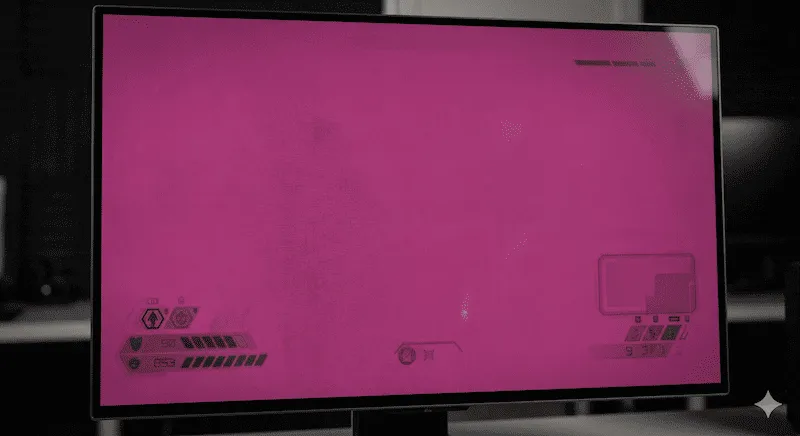
- Cycle the Colors: Pay special attention to the Magenta and 5% Grey screens, as these are the most sensitive to sub-pixel degradation.
- Look for Silhouettes: Scan the edges of the screen for faint ghost images of your taskbar or crosshairs.
Why Web Tests Beat YouTube Videos
Millions of users rely on "OLED Burn In Test" videos on YouTube. This is a massive mistake. YouTube heavily applies Chroma Subsampling (4:2:0 compression) to reduce file sizes. This compression destroys pixel-perfect color edges and artificially alters deep greys. Our HTML5 test renders 100% mathematically pure, lossless HEX colors directly via your GPU, revealing subtle burn-in that streaming video hides.
OLED Screen Uniformity & 5% Grey Test
Aside from permanent burn-in, OLED panels often suffer from "Vertical Banding" straight out of the box. This is a manufacturing variance where the panel fails to display very dark colors evenly, resulting in faint vertical stripes.
| Test Color | What It Exposes |
|---|---|
| Magenta (Pink) / Cyan | The absolute best colors for exposing Burn-In. If the Red or Blue sub-pixels have degraded from static HUDs, a dark ghost image will clearly appear here. |
| 5% Grey / 10% Grey | The industry standard for exposing Vertical Banding and Dirty Screen Effect (DSE). Most noticeable when gaming in dark caves or space scenes. |
| Pure White / Pure Black | Used to locate Dead Pixels (black dots on a white screen) and Stuck Pixels (bright dots on a black screen). |
Can Screen Burn-In Be Fixed?
If you notice faint silhouettes during the test, do not panic immediately. OLED panels suffer from two distinct issues:
- Temporary Image Retention (Fixable): Sometimes a static image leaves a ghost for a few minutes. Running your monitor's built-in "Pixel Cleaning" or "Panel Refresh" feature in the OSD settings will completely erase this.
- Permanent Burn-In (Irreversible): If you run a pixel cleaning cycle and the ghost image remains visible on the Magenta test screen, the organic diodes have physically degraded. This cannot be fixed by software. You must initiate an RMA (Return Merchandise Authorization) with your manufacturer. Fortunately, brands like Dell and LG now offer 3-year burn-in warranties.
Frequently Asked Questions (FAQ)
How to check for OLED burn in?
To check for OLED burn in, display a pure, uncompressed full-screen image of solid colors (Red, Green, Blue, Magenta) and dark grays (5% and 10%). Look for faint silhouettes or ghost images of previous UI elements.
How often should I run an OLED screen test?
For heavy desktop use (programming, browsing), we recommend running this uncompressed burn-in test every 3 to 6 months to catch early signs of degradation before your manufacturer warranty expires.
What is an IPS Glow test?
If you own an IPS monitor rather than an OLED, you may notice yellow or white light bleeding from the corners of the screen in a dark room. You can use the "Pure Black" setting in our tool to test the severity of your IPS Backlight Bleed.
Display Hardware References
The hex color codes and 5% grey testing methodologies used in this tool are based on the ISF (Imaging Science Foundation) display calibration standards. For detailed warranty policies regarding burn-in replacements, consult the Dell/Alienware OLED Warranty Guide.